How to Install Big Ambitions Mods?

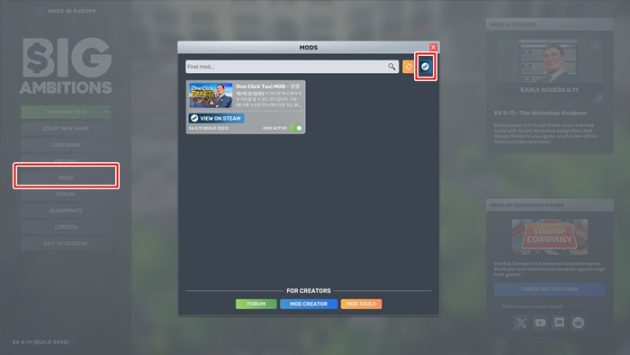
The Big Ambitions EA 0.11 (Early Access) version introduced mod support to the game. A Mods link and a mod installation screen have been integrated into the game menu. Many mod creators also began publishing their mods with the aim of contributing to the development of the game. If you want to make the game more enjoyable, you can try out the mods. You can install any mod instantly by going to Steam Workshop from within the game. To do this, click on the “Mods” menu link on the main screen. Then click on the Steam icon in the upper right corner of the opened screen.
In this article, we will install a one-click taxi call mod.
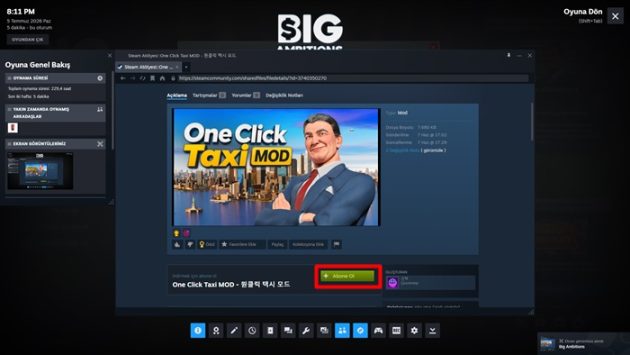
We will provide you with a mod list here; click on the mod you want to install and proceed to its details page. On the mod’s detail page, you will see a “+Subscribe” button. Click on this button and close the Steam interface using the cross in the top right corner.
If the Steam screen does not open during the game, you may have closed it previously.
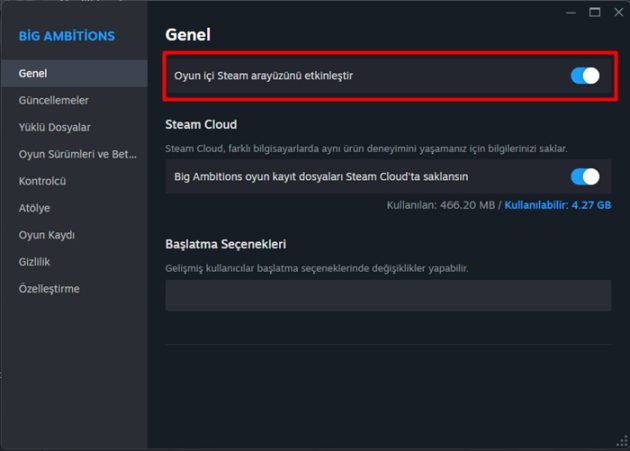
To open the Steam interface, right-click on Big Ambitions in your Library under Steam > Library and select Properties. On the General tab, enable the In-game Steam Overlay setting.
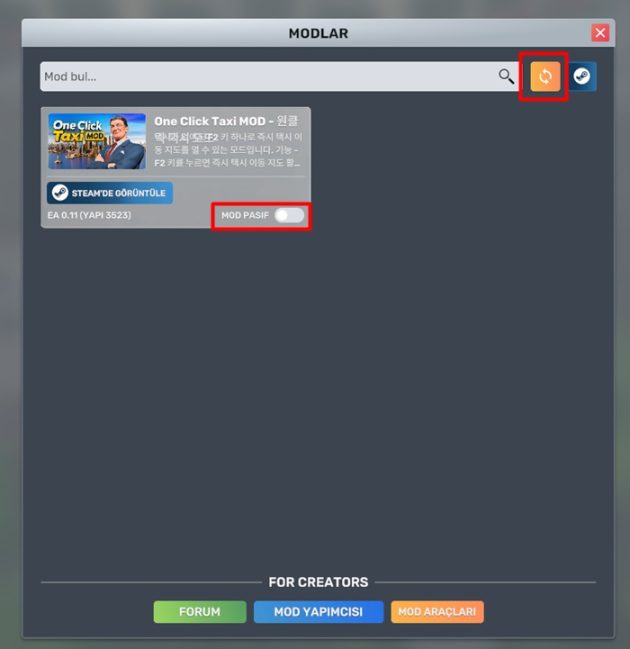
When you return to the Game Mods screen, the list will appear empty. Click the refresh icon in the top right corner once; then, when the newly added mod has finished downloading, it will appear on our list. We activate the mod from the checked area here. Now, when we enter the game with a registered game or create a new one, we will encounter the “Mods to Load?” screen.
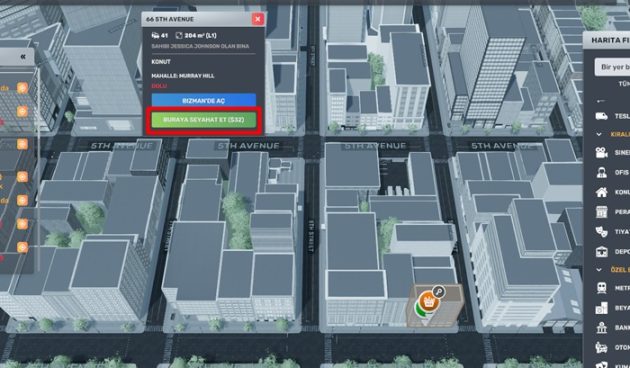
Let’s now check the effect of the mod. By pressing F2 to open the map and clicking on any building, the “Go Here” button will appear. Of course, if you pay the taxi fare, you can instantly go there. This is quite a handy mod.
To download mods from an external link, you can use the following method. You can run the downloaded mods by copying them to the following path:
C:UsersYOUR USERNAMEAppDataLocalLowHovgaard GamesBig AmbitionsModsLocal
Replace “YOUR USERNAME” with your actual Windows username.