How to Use Steering Assist in FS25

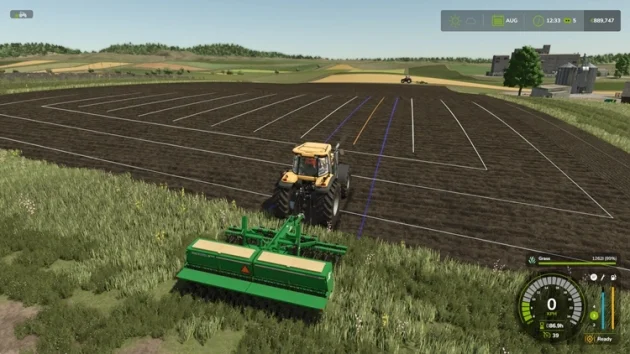
Want to drive yourself instead of paying an AI worker? Wouldn’t fieldwork be easier if imaginary lines appeared on the field and, with a single key, your tractor stayed on them without drifting? If your answer is yes, you can use Steering Assist. It creates guidance lines on the field you want to work, based on the working width of your tractor and implement, so you can complete the job perfectly without skipping rows.
To enable Steering Assist, approach the field with a tractor that has an implement attached and hold the “H” key.
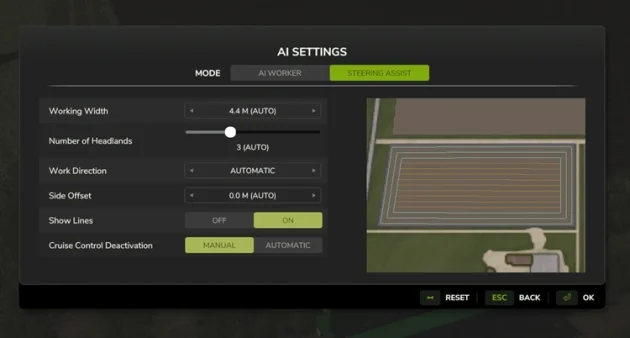
The AI Settings screen will appear. Set Mode to Steering Assist. Working Width will be set automatically based on your implement. Then press ENTER.
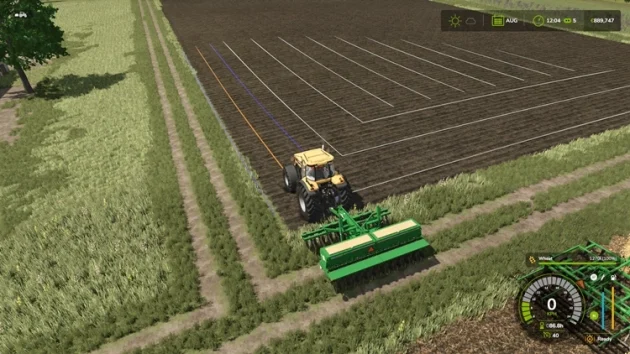
Lines will appear on the field. The line closest to the tractor is ORANGE, the BLUE lines show the working width / area to be worked, and when you press the “H” key, the GREEN line is the one the tractor will follow.
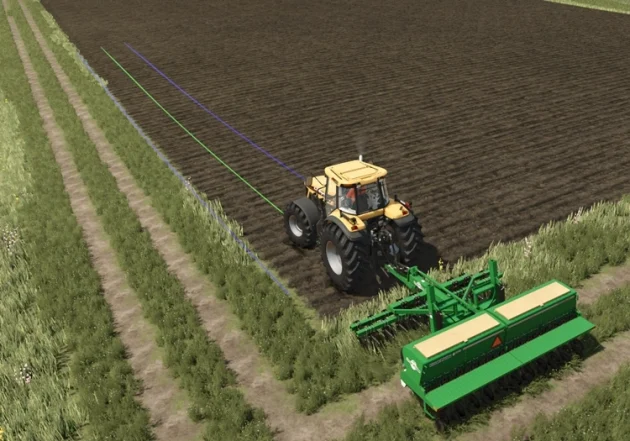
To start working, once the ORANGE line is visible, press the “H” key once — the tractor will then lock to that line. After that, you can move forward with cruise control using the “1-2-3” keys, or with the “W” key.
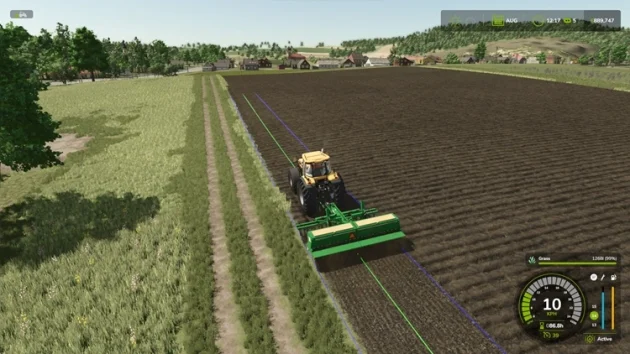
Do not press the left or right keys, so the tractor does not leave the line. When one pass is finished, realign the tractor to the next line and repeat the same steps.
Note: After you set this up, you can use it on all fields. If you want to hire a worker again, hold the “H” key and set Mode to AI Worker.